Open the timeline
The timeline is folded away until you open it. Press Timeline on the playback bar, or the down arrow key. Press it again to fold it away. Along the top of the timeline are four tabs:- Timeline: the rows of codes.
- Matrix: a count of the codes. See Find codes and count them.
- Find: a searchable list of codes. See Find codes and count them.
- Changes: every change made to the codes, with a way to undo it. See Undo a change from Changes.
Select codes
To select one code, click it. To change it, double-click it: its details open beside it, with its type, its variant and the shirt number, and Delete. To put codes in a presentation, see Turn codes into presentations. To select more than one code:- Hold Shift and click another code to add it.
- Press Ctrl + A (Cmd + A on a Mac) to select every code.
- With a code selected, press Tab for the next code and Shift + Tab for the one before.
Move a code or change its length
Drag a code along its row to move it. For a code with a length, such as a ruck, drag either end to make it longer or shorter. You can also use the video. Select the code, move the video to the right moment, then press [ to start the code there, or ] to end it there.What can I do to a selected code?
Right-click a code, or a selection of codes, to see what you can do to it.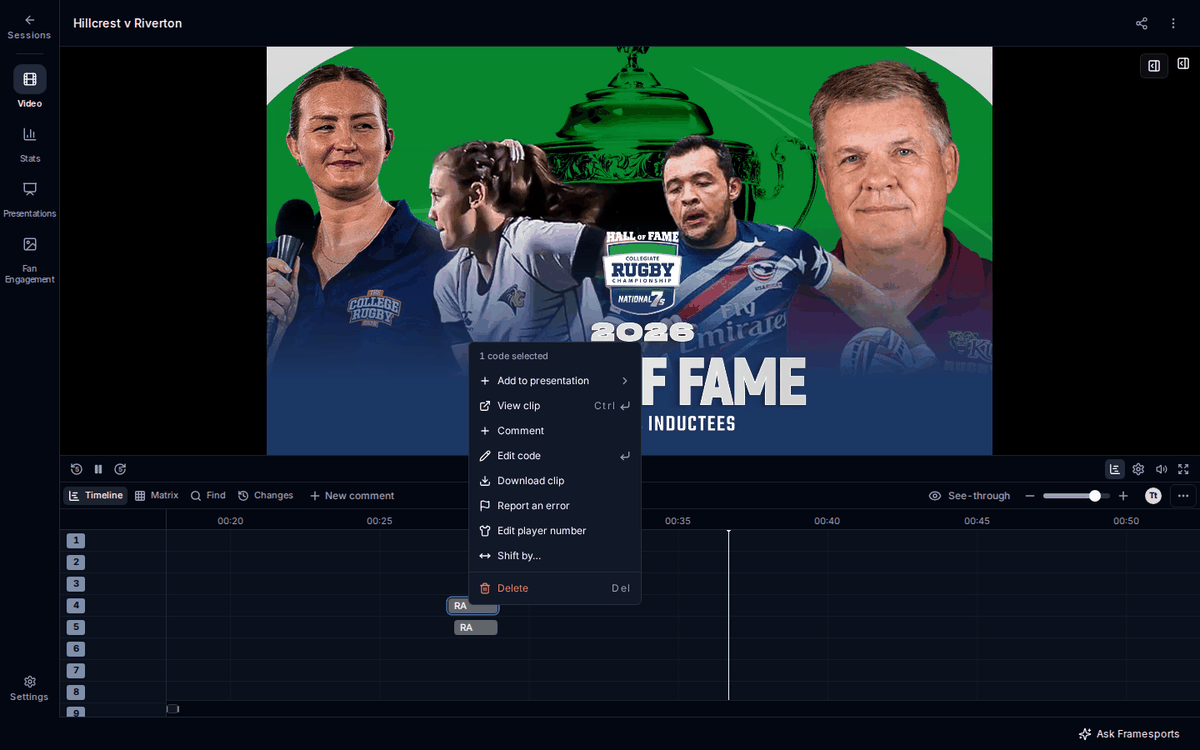
To copy codes, select them and press Ctrl + C. Move the video to where you want them and press Ctrl + V. On a Mac, use Cmd.
Every change saves by itself. To take back the last change, press Ctrl + Z (Cmd + Z on a Mac).
Rate a code as good or bad
When you use the Framesports codes coding window, selecting a code shows it at the top of the coding window. You can rate it there:- Good or Bad, for example Good Kick or Bad Kick. Press the same button again to take the rating off.
- Add comment comments on that code.
- Next, for example Next Kick, selects the next code on the same row and moves the video to it.
- More detail opens the rest of the code’s details, when it has any.
Arrange the rows
Each row holds one kind of code, such as Tackle or Kick. To put the rows in a different order, drag a row’s name up or down. The order is kept on that browser. To see one row for each player instead, open ⋯ at the end of the timeline’s toolbar and choose Customise. On the Layout tab, under Rows, choose One row per player. To go back, choose One row per code. Right-click a row’s name for more:- Open as table lists that row’s codes in Find.
- Combine with another row… makes a new row from two rows’ codes.
- Remove row removes a row you added that has no codes yet.
Comment on a moment
A comment marks a moment of the match with a clip and, if you like, a few words. Your club’s coaches and admins see your comments.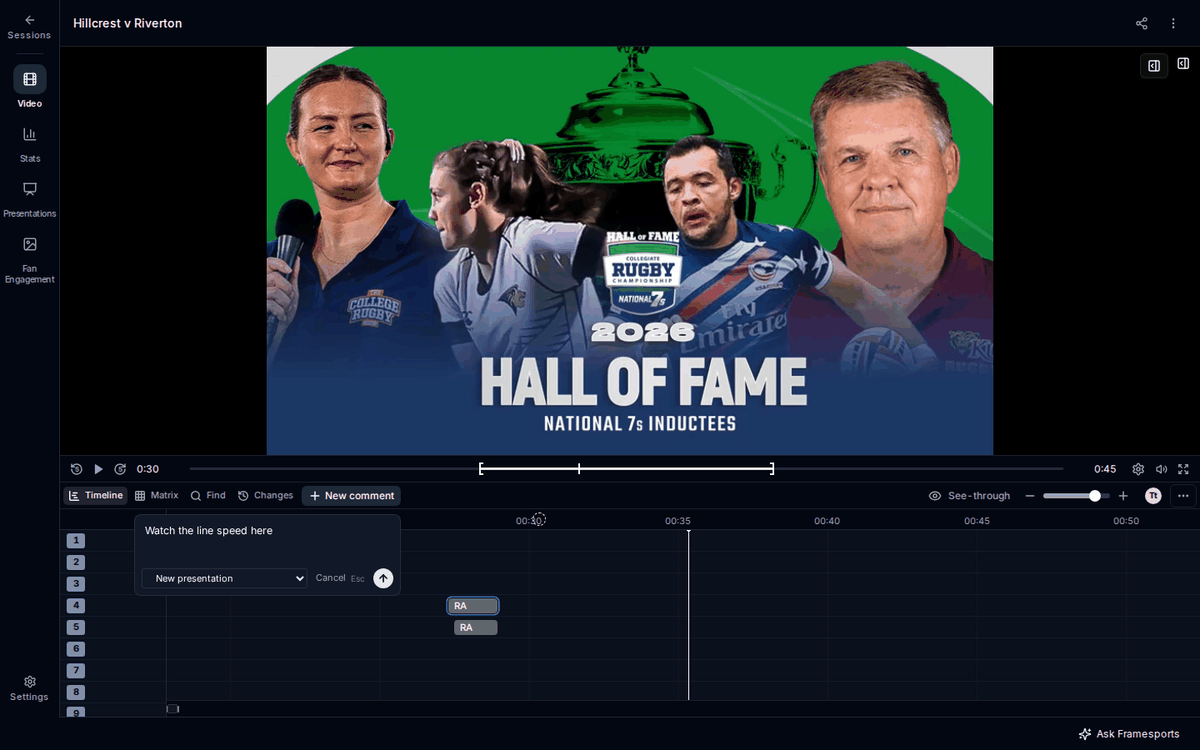
- Press New comment at the top right of the video, or Ctrl + = (Cmd + = on a Mac). The video pauses.
- Drag the two brackets on the seek bar to set where the clip starts and ends. They start 5 seconds before and 10 seconds after the moment you are on.
- Type what to look at, if you want. Words are optional, so a comment with no words works as a bookmark.
- Choose a presentation for the clip, New presentation, or No presentation.
- Press Send, or Enter.
Undo a change from Changes
The Changes tab lists every change to the session’s codes, newest first, with who made it. To go back:- Restore this code puts one code back as it was.
- Restore this version puts every code back as it was at that point.
Frequently Asked Questions
I deleted a code by mistake. Can I get it back? Yes. Press Ctrl + Z (Cmd + Z on a Mac) straight away, or find the change in the Changes tab and press Restore this code. See Undo a change from Changes. Does deleting a code delete clips made from it? No. Clips already saved from a code stay in your clip library. Who can see my comments? Your club’s coaches and admins. See Comment on a moment. How do I move several codes by the same amount? Select them, right-click, and choose Shift by…. Type the seconds, for example-2 to move them two seconds earlier. See What can I do to a selected code?