Search the codes
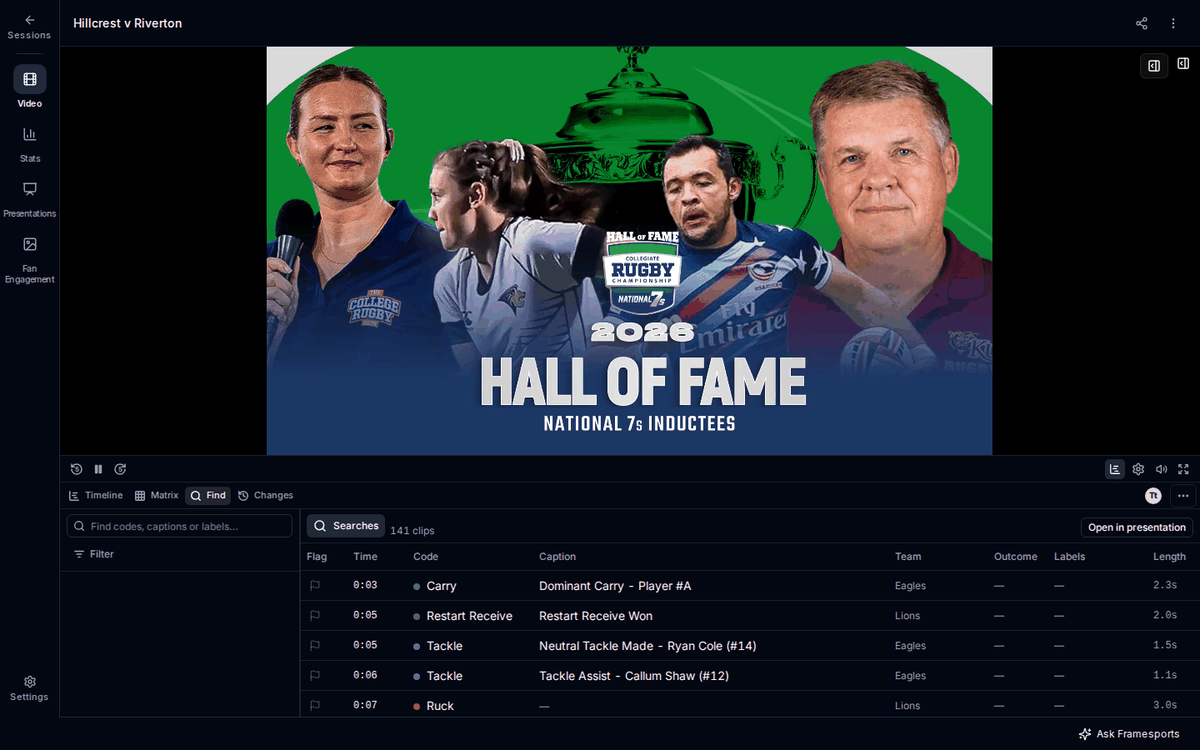
The Find tab lists every code on the session in time order. To search it:- Open the Find tab.
- Type in the box on the left, for example a code name, a player’s name or a word from a comment.
- The list shows only the codes that match, with how many there are.
Filter the codes
Filters narrow the list further, for example to one team, one player or part of the match. To add one, press Filter under the search box, choose what to filter by, and pick the value. Press Clear filters to remove them all. You can also type what you want in plain words, such as “Tom’s tackles in the second half”. MatchCoder turns your words into filters for you. This needs an internet connection; with no connection, the box still searches the words.Turn the results into a presentation
While a search or filter is on, Open in presentation turns the codes in the list into a presentation, with one clip for each code. See Turn codes into presentations. To act on a few codes from the list, select them first. Click one, hold Ctrl (Cmd on a Mac) and click others to add them, or hold Shift and click to select a run of them. Then right-click for what you can do, such as Add to presentation or Comment.Count the codes in the Matrix
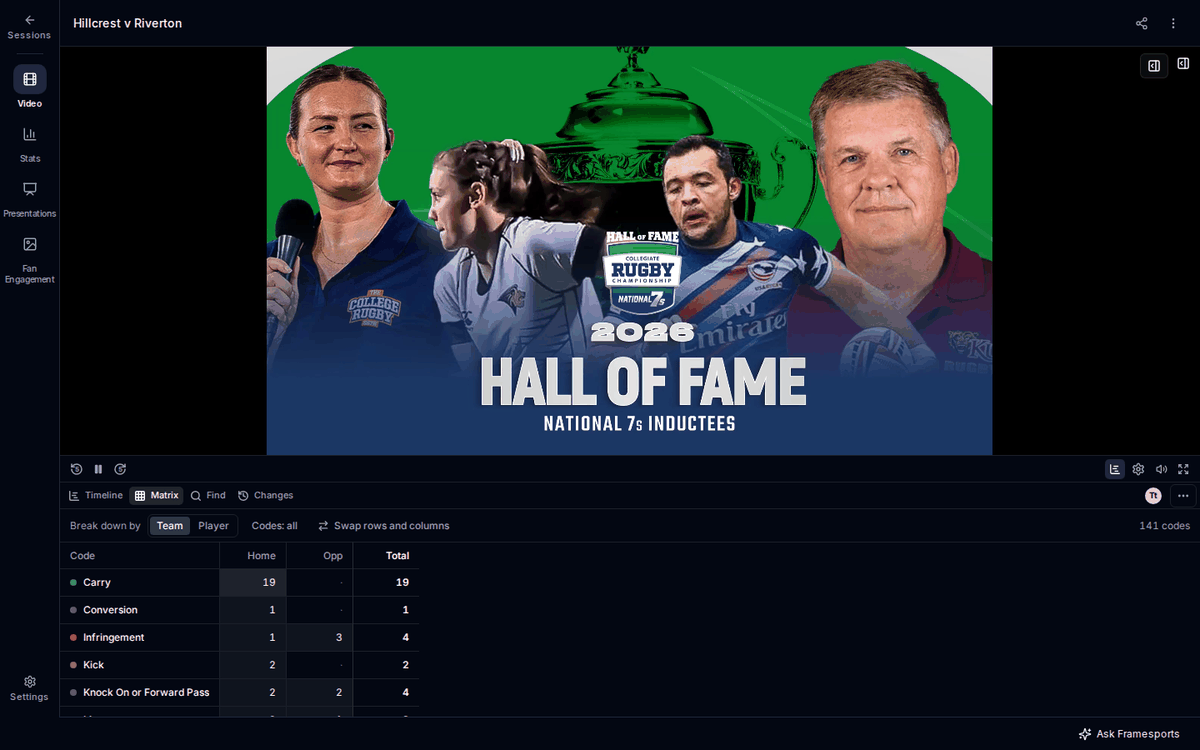
The Matrix tab is a table that counts the session’s codes. Each row is a kind of code, such as Carry or Kick. The columns split the count, for example by team.