Start coding
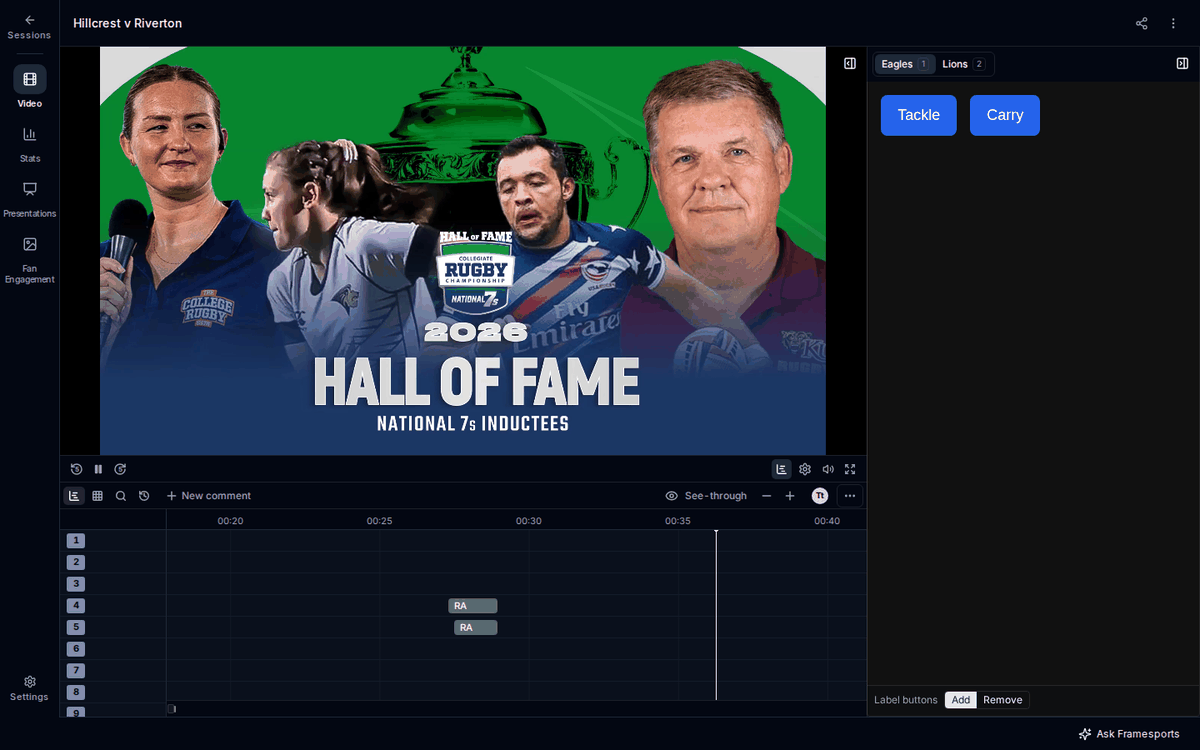
To code a session, open the timeline and then the coding window.- Open the session on its Video page.
- Press Timeline on the playback bar, or the down arrow key.
- Press Show the coding window at the top right of the video, or Alt + C.
- Play the video and press a button each time something happens.
What happens when I press a button?
A press adds one code at the playhead, on the button’s row of the timeline. The new code shows on the timeline straight away and saves by itself. A button can also make a code with a length, such as a phase of possession. When Press again to end it is ticked for that button in Button settings, the first press starts the code and the second press ends it. To take back the last code, press Ctrl + Z (Cmd + Z on a Mac). To cancel every code you have started but not ended, press Esc.Change how a button codes
You can change how much video a button’s code takes in, and whether it needs a second press. Button settings lists the buttons you have pressed at least once on this session, so press a button once before you change it. To change a button:- Open ⋯ at the end of the timeline’s toolbar.
- Choose Coding window, then Button settings….
- Find the button’s row under Code.
- Set Before (s) and After (s): the seconds of video the code takes in before and after your press. Leave a box blank to keep the button’s own timing.
- To start the code on one press and end it on the next, press the arrow at the end of that row and tick Press again to end it.
- Press Done.