How do I open a session in MatchCoder?
Open the session, and MatchCoder is its video page. There is nothing to switch on.- Click Sessions in the sidebar.
- Click the match or training session.
- The session opens on Video, with the video and its playback bar.
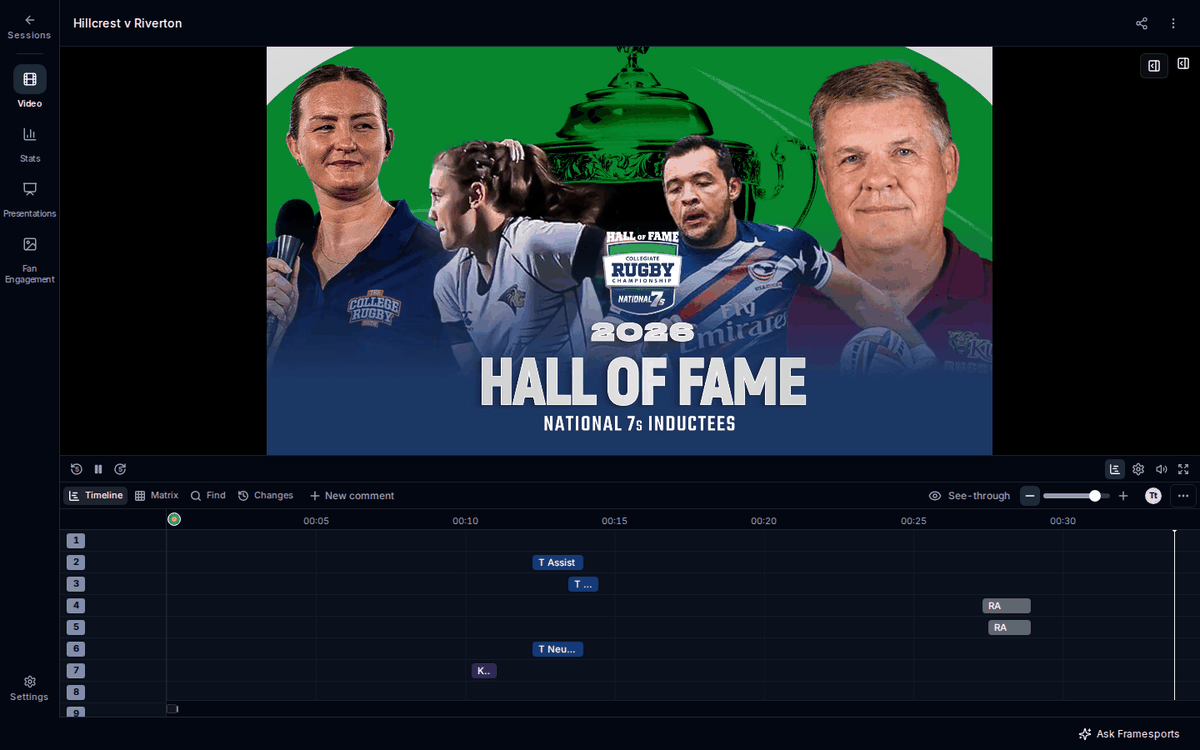
What is on the page?
The page has the video at the top and, once you open it, the timeline underneath.- The sidebar down the left side: Sessions to go back, then Video, Stats, Presentations, Fan Engagement and Settings.
- The playback bar under the video: play and pause, five seconds back and forward, Timeline, Video settings, mute and full screen.
- New comment at the top right of the video, to comment on a moment. See Comment on a moment.
- The timeline, with its tabs Timeline, Matrix, Find and Changes. See Edit codes on the timeline.
- The coding window, the panel of buttons you code with. Open the timeline first, then press Show the coding window at the top right of the video. See Code with a coding window.
- ⋯ at the end of the timeline’s toolbar, with Export, Versions of this coding, Settings and more.
Who can change the codes?
Club admins and coaches of the club that holds the session can change its codes. Everyone else who can see the session can watch it, but cannot change it. Every change saves by itself. While something is still saving, the page header says so, for example Saving…. When everything is saved, the header shows nothing.Why does my session open the older video page?
On some sessions MatchCoder steps aside and the session opens on the older video page instead. This happens:- On a phone. Open the session on a tablet or computer to code it.
- With no internet, if the session is not saved on your device. See Code without internet.
- From a stat. A click on a number in Stats opens the older video page filtered to those clips.
- While the session is still being analysed, or while the other team’s side of the same match is not ready yet. You can change the codes once the session has been delivered.